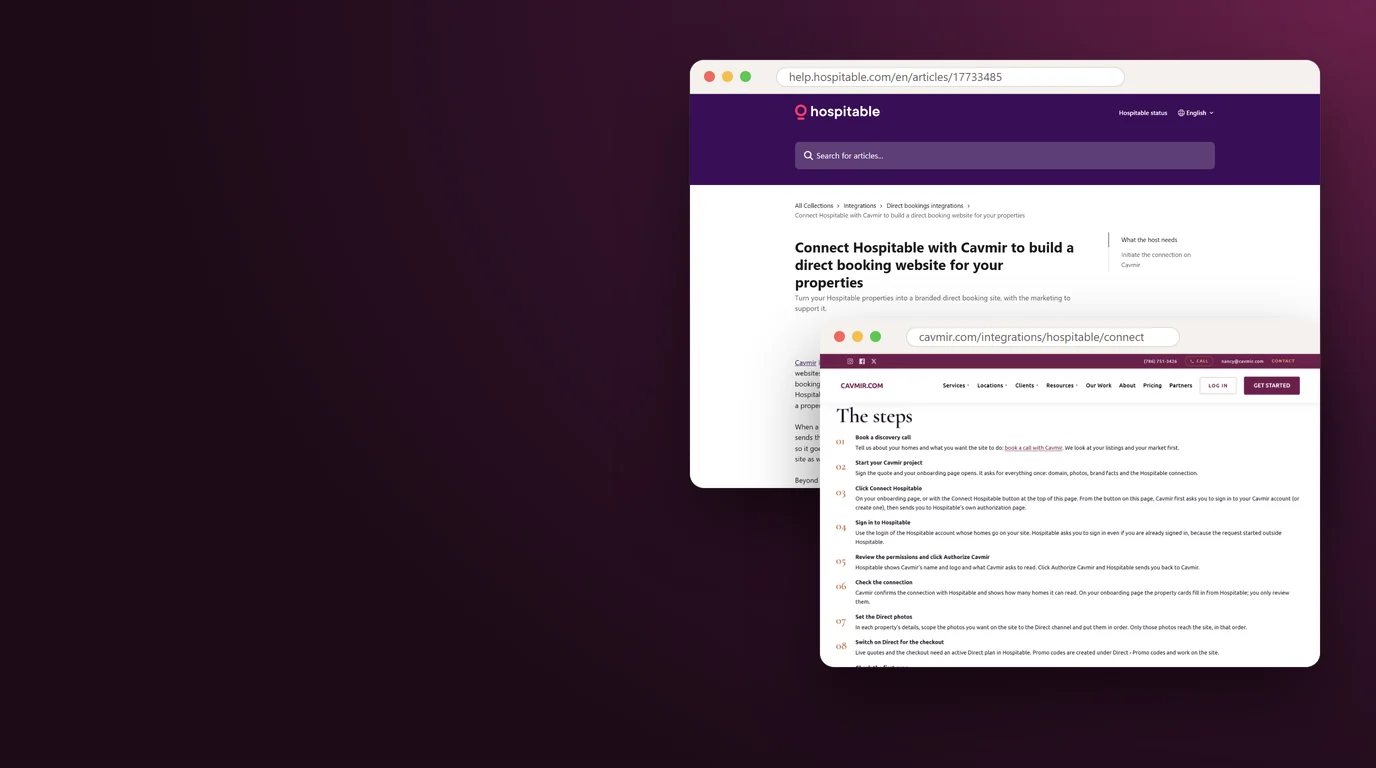


Hospitable has published a Help Center article called "Connect Hospitable with Cavmir to build a direct booking website for your properties." It sits under Integrations, in the Direct bookings integrations collection. In eight short steps it explains how a Hospitable host connects to Cavmir and what to set up first. We're grateful to Hospitable for publishing it, and this post is our companion to it.
Each of those eight steps has a few decisions behind it: which Direct plan, which photos, which promo codes, what to compare before launch day. I'll take them in the order you'll meet them, with the screens and menu paths you'll see in Hospitable and the small mistakes that take a minute to fix before launch and much longer after.
For why Cavmir builds on Hospitable, our post on the Hospitable and Cavmir partnership is the feature tour; this post is the setup guide. Hospitable's facts come from its Help Center and published pages, opened in October 2026 and listed at the end. Hospitable improves its product often, so where a setting, a fee or a plan matters, check the linked article for the current version.
What Hospitable's Help Center Article Covers
Hospitable's article opens with a one-line summary: turn your Hospitable properties into a branded direct booking site, with the marketing to support it. It then describes Cavmir as a Miami-based marketing agency that builds brands and direct booking websites for vacation rentals and boutique hotels, on top of the host's own booking software.
What the article says the website does
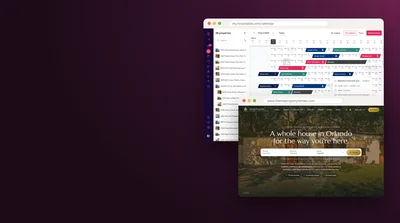
The heart of the article is how the website and Hospitable split the work. Your homes, photos, reviews, live availability and prices are read from Hospitable, so there's no second set of listings to keep up to date. Add or edit a property in Hospitable and the site follows. When a guest is ready to book, the site asks Hospitable for a live quote and sends the guest to Hospitable's checkout for that quote. Payment is taken in Hospitable, so it goes to your Hospitable account, and promo codes you create in Hospitable work on the site.
Beyond the website, the article mentions ongoing marketing such as SEO, social media posting and monthly reporting. It is also clear about roles: Cavmir is a marketing agency, not a property manager, and Hospitable remains the system of record for your properties, calendars and guest messages.
What it asks you to have ready
The article names four things: a Hospitable account, the photos you want on the site scoped to the Direct channel, Direct switched on if you want checkout on your own site, and promo codes, which are created in Hospitable. Then come eight steps, from booking a discovery call with Cavmir to checking the first sync.
The related articles it points to
Below the steps, Hospitable lists five of its own articles: How Direct Bookings Work, Getting Started with Your Direct Booking Site, Managing Property Eligibility for Direct Bookings, Create Your Direct Booking Site, and Add a Direct Booking. Most of what they say applies to a Cavmir site too, because the checkout, the payment, the eligibility rules and the promo codes are Hospitable's either way. The article closes by noting the integration is built by Cavmir (Trousdale Digital Technologies LLC), with a link to our connect guide and an email address for questions.
How Your Website and Hospitable Share the Work
Think of Hospitable as the front desk and the cash register of your business, and your website as the shop window and the sign over the door. The window shows what's inside, and when a guest wants to buy, they walk to the register.
| Job | You | Hospitable | Cavmir |
|---|---|---|---|
| Home names, descriptions, amenities, house rules | Keep them current in Hospitable | Stores them as the system of record | Shows them on your site |
| Website photos | Choose them and scope them to Direct | Holds each home's gallery and its order | Shows the Direct set, in your order |
| Prices, availability, minimum stays | Set them yourself or with dynamic pricing | Applies them across every channel | Shows them live and asks Hospitable for each quote |
| Checkout and payment | Choose the Direct plan and payout account | Runs the checkout, takes the payment, pays you out | Sends the guest to Hospitable's checkout |
| Promo codes | Create them | Checks each code against its rules | Lets guests enter them in the booking box |
| Guest messages, tasks, door codes | Write your message rules | Runs them for direct bookings like any other | Not involved |
| Brand, design, domain, pages | Approve them | Offers its own Direct site builder if you want one | Designs and builds your site |
| Search pages, social posts, monthly reports | Read the report | Not involved | Runs the marketing |
The one rule that follows from the table
Edit in Hospitable, never on the website. A typo in a description is fixed in the home's details in Hospitable, and a wrong price in Hospitable's calendar. The site reads from Hospitable, so a change made there reaches the site along with your other channels.
What Cavmir reads, and what it never touches
When you connect, Cavmir can read your properties and their details, your listings, the photos scoped to Direct, reviews, the calendar with prices and availability, and reservations. It doesn't read your guests' messages or any payment data, and the site never publishes Wi-Fi details or door codes. Cavmir writes nothing in your Hospitable account. When a guest asks for a price, the booking box asks Hospitable for the exact price of that stay, and the guest books and pays in Hospitable's checkout.
That split is also why Cavmir is a marketing agency and not a property manager: we don't run your homes, answer your guests or hold your money. Our Hospitable integration page shows the same split in one screen, and our direct booking website service covers what the site itself includes.
Choosing a Direct Plan in Hospitable
Direct is Hospitable's own booking channel, the one that takes reservations from your website instead of from Airbnb or Vrbo. A Cavmir site uses it for the last step of every booking: the live quote and the checkout both need an active Direct plan in Hospitable. Without one, there's no checkout to send the guest to, so settle this first.
Which Hospitable subscriptions include Direct
At the time of writing, October 2026, Hospitable's Help Center says Direct is included on the Professional and Mogul plans. Some older legacy plans can add it for a fee per property, and the Essentials and Host plans don't include it. Hospitable's published prices put Professional at $59 a month for up to two properties plus $15 for each additional one, and Mogul at $99 a month for up to three plus $30 for each additional one, with a 14-day free trial. At those prices, five homes on Professional come to $59 plus three times $15, or $104 a month.
Direct Premium, Direct Basic and Direct Lite
| Direct plan | Where it's offered | Who takes the payment | Fee, October 2026 | What it adds |
|---|---|---|---|---|
| Direct Premium | US (with Puerto Rico and the US Virgin Islands), UK and Australia, switched on automatically there | Hospitable, as merchant of record | 4% from the guest plus 3% from the host, or 7% from the host only | Guest verification, chargeback protection, $5 million damage protection, tax calculation and collection |
| Direct Basic | Countries Stripe supports | Your own Stripe account, with you as merchant of record | 1% from the host, plus Stripe's processing fees | Promo codes, Instant Book and custom quotes. You handle taxes, chargebacks and screening |
| Direct Lite | Places where neither is offered | You, outside Hospitable | No booking fee on Professional or Mogul | Booking requests and the site builder, with no promo codes or Instant Book |
For most US hosts, Premium is the one to keep, because guest verification, chargeback cover and damage protection make a direct booking feel as safe as a marketplace one. You can switch between Premium and Basic under Settings › Plans & billing › Direct. If only Direct Lite is offered where your homes are, talk to us before planning a launch, since Lite takes payment outside Hospitable and has no promo codes.
The Premium fee on one stay
Hospitable's article on Direct service fees works through its own example: three nights at $200, a $150 cleaning fee and 10% tax. With the default split fee, the guest pays $855, including a $30 service fee, and the host payout is $799.35. With the host-only fee, the guest pays $825 and the payout is $767.25. You choose the model under Direct Bookings › Booking Policies › Service Fees, for new bookings.
The account Hospitable pays you into
On Premium, add a bank account under Settings › Payments & Payouts › Accounts › Bank Accounts. On Basic, connect a Stripe account in the same section. Each home is assigned to one account, the first becomes the default, and property managers can add one per owner or company. Premium hosts can take bookings as soon as the account is added, but payouts wait until Hospitable has verified it.
Property Details That Reach Your Website
Everything a guest reads about a home on your Cavmir site comes from that home's record in Hospitable. The best time to tidy those records is before you connect, while you can still look at them the way a guest will.
What the site shows from each home
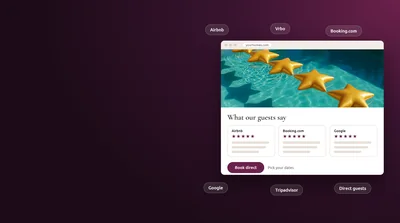
For every home, the site shows the name, description, amenities, capacity, address, house rules and check-in and check-out times from Hospitable. It shows the photos scoped to Direct, in your order, and reviews from the booking platforms with the rating, the text and your response. It shows the calendar with the nightly price, availability and minimum stay, and a search across all your homes lets a guest pick dates once and see which homes are free. Wi-Fi details and door codes never appear, even though they live in Hospitable too.
The four requirements for Direct
Hospitable only lets eligible homes take Direct bookings, and your site's checkout runs on Direct, so the same rule applies. Hospitable's article Managing Property Eligibility for Direct Bookings lists four requirements:
- A valid, complete address, under Properties › Details › Location.
- A connected payout method, so the booking has somewhere to pay.
- Complete listing content: a title and description, photos, and amenities and details.
- Pricing and availability: nightly rates set, and the dates you want to sell open.
Open each home under Properties and go through its setup sections. Hospitable highlights the required items that need attention, and the Properties list shows each home's eligibility with a warning when something is missing. When all four are met, the home becomes eligible on its own.
One more check for newer Premium accounts
Hosts who signed up for Direct Premium after December 16, 2025 need one of two things before guests can book: a verified identity on at least one payout method, or at least one active listing on a connected channel such as Airbnb, Booking.com, Vrbo or Agoda. Until then, the calendar stays blocked for Direct and a notice appears in your Direct dashboard.
Read each description as a website guest
Descriptions are often written for one marketplace and never read again. Since the description in Hospitable is the one your site shows, read it as a guest who found you on Google. Does it mention another platform's rules? Does the capacity match the beds? Are the check-in times current? A few minutes per home saves a round of corrections after the preview.
Choosing the Photos Your Website Shows
Photos are the setting worth getting right first, and it's quick once you know where to look. Hospitable lets you choose, photo by photo, which channels may show each picture, and your Cavmir site shows only the photos scoped to Direct. Picture Hospitable's gallery as one box of prints with a sticky note on each, listing where that print may go. The website only picks up prints whose note says Direct.
Where the photo settings live
Go to Properties, choose the home, click Details in the left menu, stay on the Essentials tab and click Manage photos. A dropdown at the top shows all the photos or only one channel's. Choose Direct, and you're looking at what your website will show.
Scoping photos to Direct
For one photo, click the pencil icon, find the question "What channels should this photo display on?", tick Direct and click Apply changes. Nothing is saved until you apply. For many photos at once, tick their checkboxes and use Sync to all channels, which publishes them to every channel connected to that home; to leave one channel out, edit that photo on its own afterward. When you upload new photos with the Add button, you choose their channels as you go, 30 photos per batch.
The order is shared by every channel
Hospitable keeps one photo order per home, shared by your website, Airbnb and Booking.com. Vrbo, Hospitable notes, chooses its own. To change the order, click Re-order photos, drag the photos where you want them and click Save order. The photo that sells the stay should lead everywhere anyway.
The first edit changes who is in charge
Until you edit a home's photos in Hospitable, Hospitable keeps importing photo changes from Airbnb and Booking.com. Your first edit, reorder, upload or deletion brings up a one-time banner. Once you confirm it, Hospitable stops importing photo updates from the channels and becomes the source of truth for that home's photos, so future changes are made in Hospitable. For a website that's the setup you want. Just know what the banner means before you click.
Picking the Direct set
A website shows photos larger than a phone app does, so use Replace photo to upload your full-size originals; Hospitable matches them to the photos already there and keeps the order and settings. Lead with the picture that explains the stay, include every bedroom and bathroom so guests can match beds to the guest count, and leave out near-duplicates.
Setting Up Promo Codes in Hospitable
A promo code is one of the easiest reasons for a guest to book with you instead of on a marketplace, and Hospitable runs the whole thing. You create the code in Hospitable, and it works on your Cavmir site. Because the code lives in Hospitable, you can change it or end it without anyone touching the website.
Creating a code
Open Direct › Promo codes and click + Add New. A code is 3 to 64 letters and numbers. Choose a percentage, which applies to the nightly rate, or a fixed amount in the property's currency, then choose which properties the code works for. You can create as many codes as you like, one per offer.
The rules you can attach
Every rule is optional, and each one narrows when the code works:
- An expiration date, the last day the code can be used.
- Stay dates, so the code only works for stays inside a date range.
- A number of uses, the total redemptions allowed.
- A minimum length of stay, useful for weekly or monthly offers.
- A minimum booking value.
- A stacking limit, so a guest gets one discount at a time.
How the discount is applied
Only guests apply codes, while they book. A percentage comes off the nightly rate only, so cleaning and other fees aren't discounted, and the discount is capped at 100% of the nightly rate. If a stay doesn't meet the code's rules, the code doesn't apply and the guest sees a message explaining why. A code can't be added after a booking is made, and cancelled or declined bookings don't count against its usage limit. Codes also don't apply to bookings you create yourself from the Inbox or the Calendar; for those, you set the price in the quote you send.
Codes worth creating before launch
Libema Property Rentals, the Orlando site we built on Hospitable, has a Discount code field in its booking box, and any code Libema creates in Hospitable works there. Here are a few codes that earn their place:
- A returning-guest code for guests who booked direct before, so their second stay starts on your site.
- A quiet-season code limited by stay dates, with a minimum stay so it fills weeks instead of single nights.
- One code per campaign, such as one for social media and one for your email list, so the code a guest used tells you which campaign brought them.
- A long-stay code with a minimum length of stay, if you take monthly guests.
Put each code's purpose in its name, so you'll still know what SPRING10 was for when you see it next year.
Connecting Hospitable to Cavmir
The connection is the shortest part of the setup. It runs through Hospitable's own sign-in, so there's nothing to copy or paste, and Cavmir never sees your Hospitable password. It works like a "Continue with Google" button: Hospitable confirms who you are, shows what Cavmir is asking for, and asks you to agree.
Before you click
The connection is part of a Cavmir project, so it comes after a discovery call, which you can book on our contact page, and a signed quote. Signing the quote opens your onboarding page, which asks for everything once: your domain, your photos, your brand facts and the Hospitable connection.
From your onboarding page
- Click Connect Hospitable on your onboarding page. You're already signed in to Cavmir there, so it takes you straight to Hospitable.
- Sign in to Hospitable with the login for the account whose homes will appear on your site. Hospitable asks you to sign in even if you're signed in already, because the request started outside Hospitable.
- Hospitable shows Cavmir's name and logo and the permissions it's asking for. Review them and click Authorize Cavmir.
- You land back on Cavmir, which confirms the connection and shows how many homes it can read. The property cards on your onboarding page fill in from Hospitable, and you only review them.
From Cavmir's connect guide
The Connect Hospitable button at the top of our connect guide works too. It first asks you to sign in to your Cavmir account, or to create one with your email, a password and a code we email you. Then it sends you to Hospitable's authorization page, where you review the permissions and click Authorize Cavmir.
From Hospitable's Apps page, once it's published
Cavmir's listing on Hospitable's Apps page is in review. If Hospitable publishes it, you'll also be able to open Apps, choose Cavmir and click Get Started, which sends you to Cavmir to sign in or create an account in a minute. The connection is made once you're in, so Hospitable shows Cavmir as connected only after that step.
What you're agreeing to
The permissions let Cavmir read your properties and their details, listings, the photos scoped to Direct, reviews, the calendar and reservations. They don't cover your guests' messages or payment data, and Cavmir never changes your homes, prices or reservations. Our privacy policy has a section on booking software data: the data is used only to build and update your site and its booking box, no guest contact details are stored, it's never sold or used for advertising or to train AI models, and your account details are deleted within 30 days of disconnecting.
Checking the Preview Before Launch
After the connection, Cavmir reads every home and sends you a preview link. Hospitable's article lists this as the last step: check the names, the photos and a sample quote against Hospitable. Open the preview in one browser tab and Hospitable in another, and go through the table one home at a time.
| Check | On the preview | Compare in Hospitable | If it's off |
|---|---|---|---|
| Every home is there | The homes list | The Properties list | Tell us which is missing, and check its Direct eligibility |
| Names and descriptions | Each home's page | Property › Details | Edit in Hospitable |
| Photos and their order | Each home's gallery | Manage photos, filtered to Direct | Scope to Direct, reorder, save |
| Capacity, beds, rules, check-in times | The facts on each home's page | The home's details | Edit in Hospitable |
| A sample quote | The booking box for chosen dates | The same dates in the calendar | Check rates, fees and minimum stay |
| A promo code | A booking with your code | Direct › Promo codes | Check the code's properties and rules |
| The checkout | Click through to Hospitable's checkout | Your Direct plan and payout account | Settings › Plans & billing › Direct |
How to test a quote
Pick a stay you'd sell often, such as three nights over a weekend a few weeks out, and ask the booking box for a price. Open the same dates in Hospitable and compare the nightly total, the cleaning fee and the taxes. Click through to Hospitable's checkout and read the breakdown there too, but stop before the payment step. On Direct Premium with the split fee, the checkout shows the guest's service fee as its own line, which is expected.
Long stays need one extra test
If you take monthly guests, also ask for a 30-night quote. Hospitable's article on adding a direct booking notes that when a stay longer than two weeks shows no price, the fix is to raise the home's Maximum stay length setting. Hosts who mostly sell short stays often miss it until a traveling nurse asks for a month.
When you're happy
Tell us the preview is approved. From then on, the launch is about the domain and the pages around your homes, which are Cavmir's work. If something is off and the table didn't explain it, write to [email protected] while it's still a preview.
How a Guest Books on Your Website
Walk the path once as your guest will, so you know what they see and what lands on your side.
On your website
The guest picks dates in the search and sees which homes are free, with live prices from Hospitable. They open a home and choose their dates and party size in the booking box. The site asks Hospitable for a live quote for exactly that stay and shows the total. When the guest clicks to book, the site sends them to Hospitable's checkout for that quote. A guest with a promo code enters it while booking, and the discount shows before they pay.
In Hospitable's checkout
The checkout shows the full breakdown: nightly rates, cleaning, taxes, service fees, discounts, the payment schedule and the cancellation policy. Guests pay with a card, Apple Pay or Google Pay. Hospitable authorizes the payment first and captures it once the booking is confirmed, and with installments, only the first one is charged now. The cancellation policy, payment terms and fees lock in at the moment of booking, so set them before launch.
Verification and agreements
On Direct Premium, the guest verifies their identity in the Guest Portal with an ID upload and a selfie, plus contact details and the purpose of the stay. The booking isn't accepted until that's done. Low-risk guests are accepted automatically if you use Instant Book, and medium or high-risk ones come to you for review. A returning guest whose ID on file is still valid can skip the full check.
After the booking
The reservation appears in your Hospitable calendar and inbox next to your other bookings. Hospitable sends your scheduled messages, blocks the dates on every channel, creates the cleaning tasks and generates the smart lock code. A security deposit is usually authorized two days before check-in and released two days after checkout if there's no claim. On Premium, a damage claim is filed from the reservation in your inbox with Submit damage claim, within 30 days of checkout.
The money
Payment goes to your Hospitable account and on to the bank account assigned to that home. Hospitable says Premium payouts usually arrive about 24 hours after check-in, and each one is listed under Direct Bookings › Payout History. Cavmir never touches the payment.
Keeping the Site in Step With Hospitable
After launch, the daily routine doesn't change. You run your homes in Hospitable the way you did before, and the website follows. Raise a weekend price, block a date for the owner, update a house rule or swap a photo, and the site reflects it without a call to us, so the shop window matches the shelves.
When you add or remove a home
Add a home in Hospitable, and the site follows. For guests to book it, make sure it's eligible for Direct and has photos scoped to Direct. Tell us about new and departing homes anyway, because the area pages around them may need a line, and that part is ours to write.
When something looks off
When something doesn't match, it usually comes down to one setting in Hospitable. This table shows where to look.
| What you see | Likely cause | Where to fix it |
|---|---|---|
| A home is on the site, but guests can't book it | It isn't eligible for Direct: address, payout method, content or prices missing | The home's setup sections and the warnings in the Properties list |
| Every Direct date is blocked on a new Premium account | The identity requirement for accounts that joined Premium after December 16, 2025 | Verify a payout method, or keep one channel listing active |
| A new photo isn't on the site | It isn't scoped to Direct | Manage photos, the pencil icon, tick Direct, Apply changes |
| A photo changed on Airbnb didn't change anywhere else | Hospitable is now the source of truth for that home's photos | Make the change in Hospitable instead |
| A date shows no price | No nightly rate, a blocked date or a stay under the minimum | The home's calendar and minimum stay |
| A stay of several weeks shows no price | The Maximum stay length is too short | Raise it in the home's settings |
| A promo code is refused | Expired, used up, outside its stay dates, under its minimum, or not assigned to that home | Direct › Promo codes |
| The checkout shows a service fee you didn't expect | The Premium split fee model | Direct Bookings › Booking Policies › Service Fees |
If the table doesn't explain it, write to [email protected] or call (786) 751-3426 with the home and the dates. For questions about Direct itself, such as payouts, verification and fees, Hospitable's Help Center is the best place to look.
A short monthly check
Once a month, open your site on your phone, search for dates a few weeks out and open one home. Compare the price with Hospitable's calendar, check your newest photos and try your current promo code. It catches the one setting someone changed on a busy Friday.
Disconnecting or Changing the Connected Account
You stay in control of the connection the whole time. You can end it from Hospitable whenever you like, and nothing about your Hospitable account changes when you do.
How to disconnect
Remove Cavmir from your apps in Hospitable. Cavmir's access ends at once, and Cavmir deletes the connection's keys. You can also write to us and ask us to disconnect it for you. Under our privacy policy, your account details are deleted within 30 days of disconnection.
What happens to the website
The site keeps its last copy of your homes and stops updating. Prices, availability and new photos no longer follow Hospitable, and the booking box can't get live quotes. If you're disconnecting a live site, plan it with us first, so guests never see stale prices or a booking button that can't finish the job.
If the wrong account was connected
It happens most with teams: a co-host signs in with their own login, or someone uses an older second account. Write to us and we'll remove that connection. Then click Connect Hospitable again and sign in with the login for the account whose homes belong on the site.
Messages you might see while connecting
- "That link has expired." Each Connect link works once and only for a short while. Click Connect Hospitable again for a fresh one.
- "We could not finish the connection." Start again from the button. If it happens twice, write to us.
- "Hospitable was not connected." You cancelled on Hospitable's page, so nothing was shared. Try again when you're ready.
If your site was connected with a key
Before the one-click connection went live in late October 2026, Cavmir sites were connected with a key the account owner created in Hospitable, and Libema's site went live that way. To move to the new connection, click Connect Hospitable and authorize as described above, then delete the old key in Hospitable under Apps › API access. Cavmir deletes its copy once the new connection works. New connections use only the one-click route.
Marketing Your Website After Launch
Launch day is when the marketing starts. A website is like a shop on a quiet street: the stock can be perfect and the register can work, but someone still has to tell people the shop is there. Hospitable's article mentions SEO, social media posting and monthly reporting. Here's what that looks like on a Hospitable site.
Pages that answer why guests travel
Your homes' pages come from Hospitable. The pages around them come from us, written for the trips your guests take and the searches they type. Libema Property Rentals is a good example. Its thirteen furnished homes in Orlando serve traveling nurses and contractors, insurance and relocation stays, families between homes, and theme-park vacations. So beside the home pages, the site has pages for corporate housing, for the major employers in the area and for the neighborhoods, which gives Google and AI assistants something specific to read. Our SEO service covers how those pages are planned and built.
Social posts and campaigns that point home
Social media works best when every post has somewhere to send people, and a site with live prices and a working checkout is that place. Our social media service runs the posting. Give each campaign its own promo code from Hospitable, and the code a guest uses tells you which campaign earned the booking.
A monthly report you can read in one sitting
Every month you see what the site and the campaigns did, starting with the visits and where they came from. Your bookings stay in Hospitable, where its Metrics dashboard splits bookings and revenue by channel, so the direct share is easy to follow from month to month. Our monthly plans list what each level includes.
Keep the marketplaces working while direct grows
Direct booking grows beside Airbnb and Vrbo, and it doesn't need to replace them. For the bigger picture, our guides on the direct booking system for Airbnb hosts and on how to get more direct bookings go deeper.
How to Get Started With Cavmir
If you already run on Hospitable
Start with the free Cavmir audit for Hospitable hosts. We look at your listings, your current website if you have one, and your market, and tell you what we would change. When you go ahead, the code HOSPITABLE10 takes 10% off your first Cavmir website package at checkout, or off your first monthly plan in your quote. Our page for Hospitable hosts links the website packages at your Hospitable price. Request the audit on our page for Hospitable hosts, and see our packages on the pricing page. If you manage homes for owners, our page for property managers on Hospitable is written for you.
If you're not on Hospitable yet
Through Cavmir's partner link, Hospitable offers new customers 25% off for three months. The link and its details are on our Hospitable integration page. Cavmir may receive a referral fee from Hospitable if you sign up through it. It costs you nothing extra, and it doesn't change what we recommend or build for you. If you're still comparing booking software, our PMS platforms page lists the platforms Cavmir builds on, and our integrations page covers the rest.
The order of things
- Book a discovery call on our contact page.
- Sign the quote, and your onboarding page opens.
- In Hospitable, confirm your Direct plan and payout account, make each home eligible, scope the photos to Direct and create your first promo codes.
- Click Connect Hospitable, sign in to Hospitable and authorize Cavmir.
- Check the preview against Hospitable: names, photos and a sample quote.
- Approve the site, and we launch it on your domain.
- The marketing starts, and every booking it brings lands in Hospitable like any other.
Our thanks again to Hospitable's team for publishing "Connect Hospitable with Cavmir to build a direct booking website for your properties" in its Help Center. If you run your homes on Hospitable, we'd love to build your direct booking website.
Sources
- Hospitable Help Center, Connect Hospitable with Cavmir to build a direct booking website for your properties, updated October 26, 2026, opened October 2026. help.hospitable.com
- Hospitable Help Center, How Direct Bookings Work, opened October 2026. help.hospitable.com
- Hospitable Help Center, Getting Started with Your Direct Booking Site, opened October 2026. help.hospitable.com
- Hospitable Help Center, Managing Property Eligibility for Direct Bookings, opened October 2026. help.hospitable.com
- Hospitable Help Center, Create Your Direct Booking Site, opened October 2026. help.hospitable.com
- Hospitable Help Center, Add a Direct Booking, opened October 2026. help.hospitable.com
- Hospitable Help Center, All About Direct Bookings, updated July 28, 2026, opened October 2026. help.hospitable.com
- Hospitable Help Center, Promo Codes for Direct Bookings, updated April 16, 2026, opened October 2026. help.hospitable.com
- Hospitable Help Center, Managing Property Photos in Hospitable, opened October 2026. help.hospitable.com
- Hospitable Help Center, Direct Booking Service Fees, updated June 17, 2026, opened October 2026. help.hospitable.com
- Hospitable Help Center, Guest Verification for Direct Bookings, opened October 2026. help.hospitable.com
- Hospitable Help Center, How to Report Damage for Direct Bookings, opened October 2026. help.hospitable.com
- Hospitable Help Center, Set Up a Bank Account for Direct Bookings, updated September 11, 2026, opened October 2026. help.hospitable.com
- Hospitable, How to talk about Hospitable on your site (brand kit, plans and prices, product screenshots), opened October 2026. hospitable.com
- Cavmir, Connect Hospitable with Cavmir (connect guide), opened October 2026. cavmir.com
- Cavmir, Hospitable and Cavmir integration page (status, what the site shows, partner offers), opened October 2026. cavmir.com
- Cavmir, Privacy policy, Booking Software Data (Hospitable), opened October 2026. cavmir.com
- Libema Property Rentals, live website built by Cavmir on Hospitable, opened October 2026. libemapropertyrentals.com
Hospitable dashboard images are Hospitable's own product screenshots with demo data, from the partner brand kit on hospitable.com/brand, shown in a browser frame. The Help Center article, the Cavmir pages and the live Libema Property Rentals site are screenshots taken by Cavmir in October 2026. Hospitable is a trademark of its owner.